iPhone call recording · How-to guide
How to record a phone call on iPhone with transcript
iOS 18.1 added native call recording with an automatic transcript through the Notes app, but only on devices with Apple Intelligence in supported regions. For users on older iOS versions, a different device on the other end, or outside supported areas, a physical recorder that captures both sides of the call directly is the most reliable option on any iPhone.
 Works on any iPhone
Quick answer
4 steps to record an iPhone call and get a transcript
The method depends on your iOS version. iOS 18.1 with Apple Intelligence handles everything natively. For all other devices, a physical recorder attached to the phone works on any iOS version.
1. Check your iOS version and Apple Intelligence availability
Go to Settings > General > Software Update. iOS 18.1 or later with Apple Intelligence enabled in a supported region unlocks native call recording in the Phone app with automatic transcript in Notes.
2. If iOS 18.1 is available: start a call and tap the record button
Once recording begins, iOS sends an automatic notification to all parties that the call is being recorded. The recording is saved to the Call Recordings folder in Notes and a transcript is generated automatically after the call ends.
3. If iOS 18.1 is not available: attach a physical recorder to the iPhone
A recorder designed to attach to the back of an iPhone captures audio from both the speaker and microphone sides of the call directly, on any iOS version, without requiring the other party to have a specific device or app.
4. After the call: access the transcript in Notes or sync the recording
iOS 18.1 users find the transcript in Notes automatically. For physical recorder users, syncing the device to the app generates an AI transcript without a separate upload step.
Methods
Which setup records an iPhone call and produces a transcript
Compared on iOS version required, whether all parties are notified automatically, whether the method works without internet, and whether a text transcript is produced after the call.
iOS 18.1 native call recording
Built into the Phone app on supported devices. Recording starts with one tap. An automatic notification is sent to all parties at the start of the recording. Transcript appears in the Notes app automatically.
Third-party app (Google Voice, Fireflies)
Works on any iOS but requires an internet connection. Consent handling varies by app. Transcript quality depends on the service.
Second device recording ambient audio
A second phone or laptop placed near the speaker captures the caller's voice. Only one side of the call is captured cleanly.
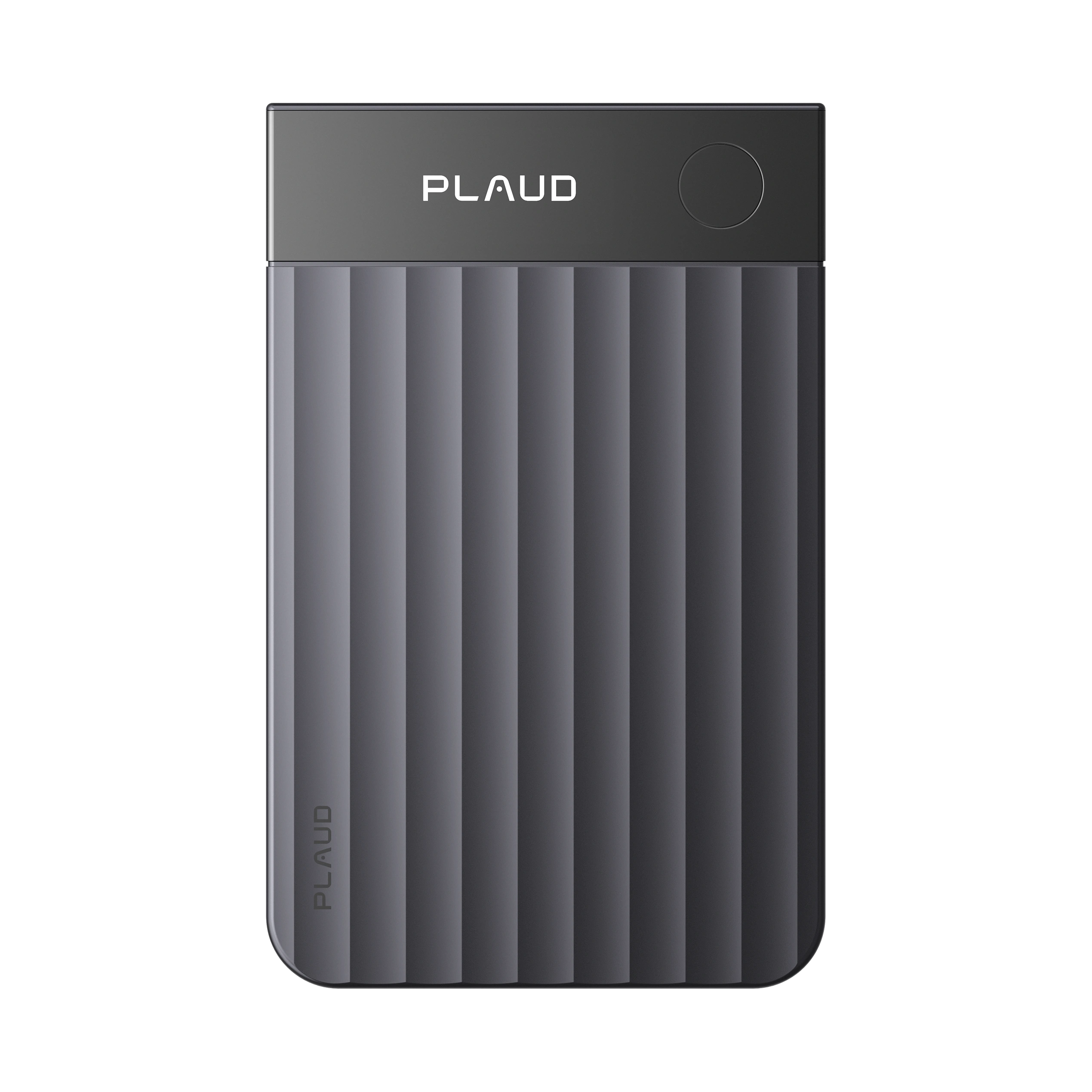
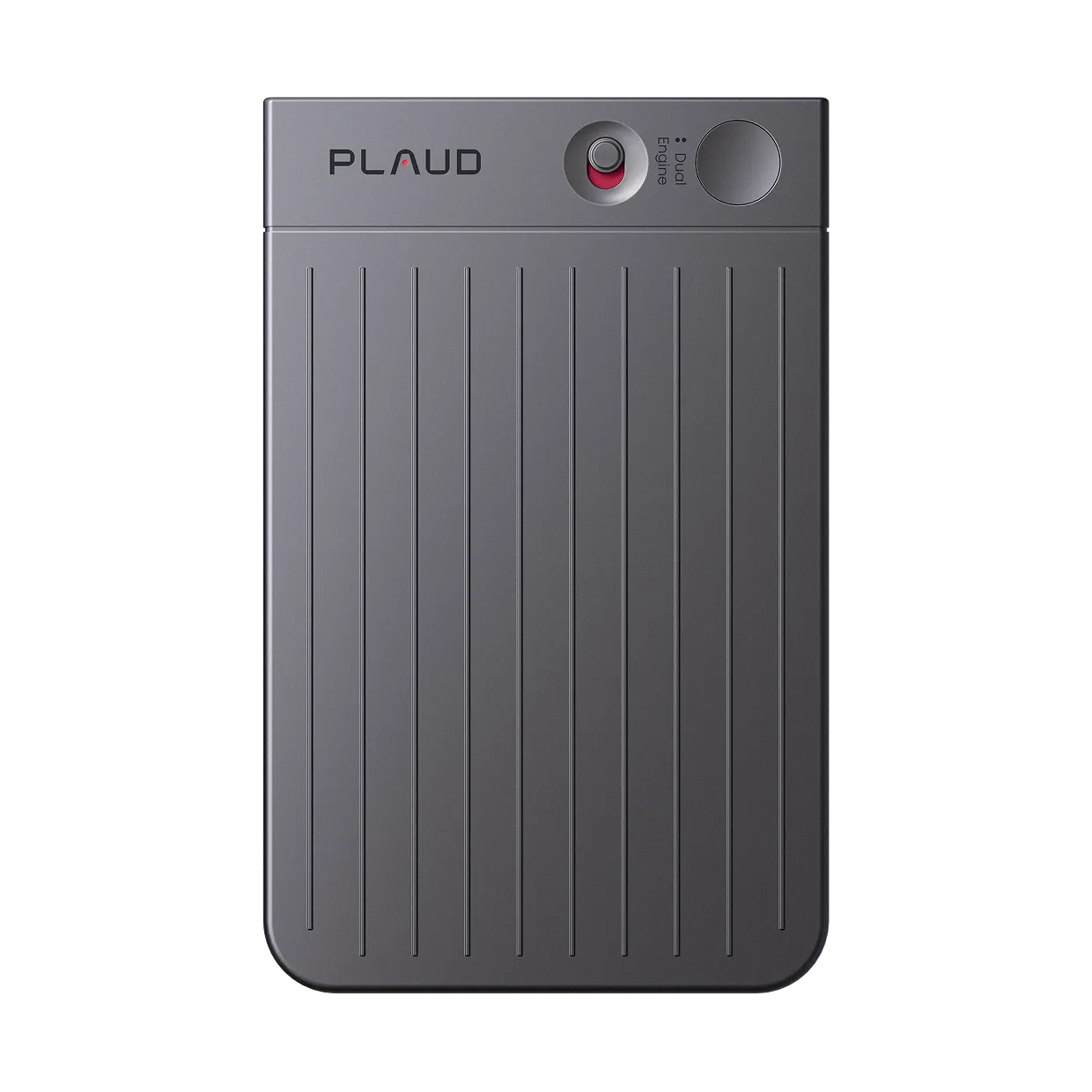
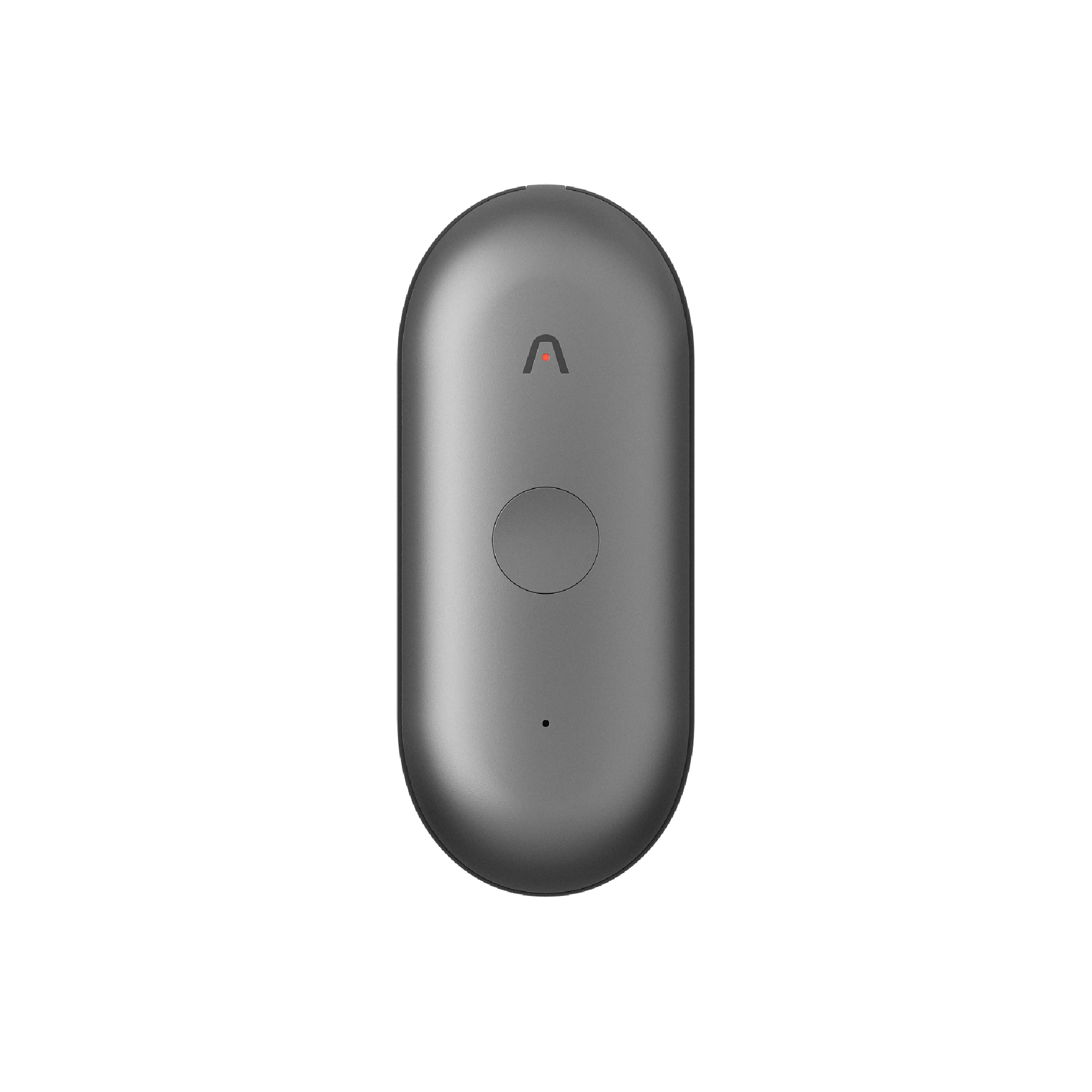
Plaud Note (magnetic attachment)
Attaches to the back of the iPhone with a magnetic case and records audio from both the speaker and the microphone directly. Works on any iOS version.
Recording laws vary by jurisdiction. Many require the consent of all parties before a call is recorded. Always inform the other party and confirm local requirements before recording.
Tips
What determines the quality of an iPhone call transcript
Transcript quality follows audio quality. A recording that captures both sides of a call clearly produces a transcript with fewer errors than ambient capture from a second device.