Audio transcription · How-to guide
How to transcribe a voice recording or audio into text
You recorded the audio. Now you need the text. The gap between an audio file on your phone and a clean, searchable transcript is where most transcription methods fall short. Phone dictation only works live. Free upload tools run out of minutes. Manual typing takes hours.
 Best for no-upload, no-cap transcription
Quick answer
4 steps to transcribe a voice recording or audio file
The right method depends on whether you are recording now or working with a file you already have. Match the method first, then run transcription.
1. Identify your audio source: a live recording you are about to make, or an existing file you already have
If you are recording live right now, phone dictation and most AI tools are available. If you already have an audio file from a phone recorder, meeting app, or field device, you need a method that accepts uploaded files. Phone dictation cannot process existing files. It captures live speech only.
2. Match the method to your audio type: phone dictation, browser upload tool, or a dedicated transcription device
Phone dictation works only for live speech. Browser-based tools accept existing files in MP3, M4A, WAV, and MP4 formats but may cap your monthly transcription minutes on free plans. A dedicated recording device with on-device AI handles both live capture and subsequent transcription without an upload step or a monthly limit.
3. Run the transcription and review the output for accuracy
Check proper nouns, names, and speaker turns. AI transcription tools are accurate for clear recordings but still benefit from a quick review pass. Multi-person recordings require speaker label support if you need attribution.
4. Export the text and organize it alongside the original audio
Save the transcript as TXT, DOCX, or SRT depending on your workflow. Keep the original audio file alongside the transcript so you can return to any moment by timestamp.
Methods
Which transcription method fits your audio type
Compared on whether the method accepts existing audio files, how long transcription takes, whether speaker labels are available, and whether a monthly minute cap applies.
Manual transcription (type while listening)
Works on any audio file from any source. No account or upload required. Accurate because you control every word. Takes four to six times the length of the audio to complete.
Browser-based AI upload tool
Accepts existing files and returns a transcript in minutes per hour of audio. Free tiers cap monthly minutes, typically at 300 to 600 minutes. Speaker labels and export options are often paywalled.
Phone dictation (iOS or Android)
Real-time only. You speak and the phone types what it hears. Cannot process an existing audio file. Users who already have a recording cannot use this route.
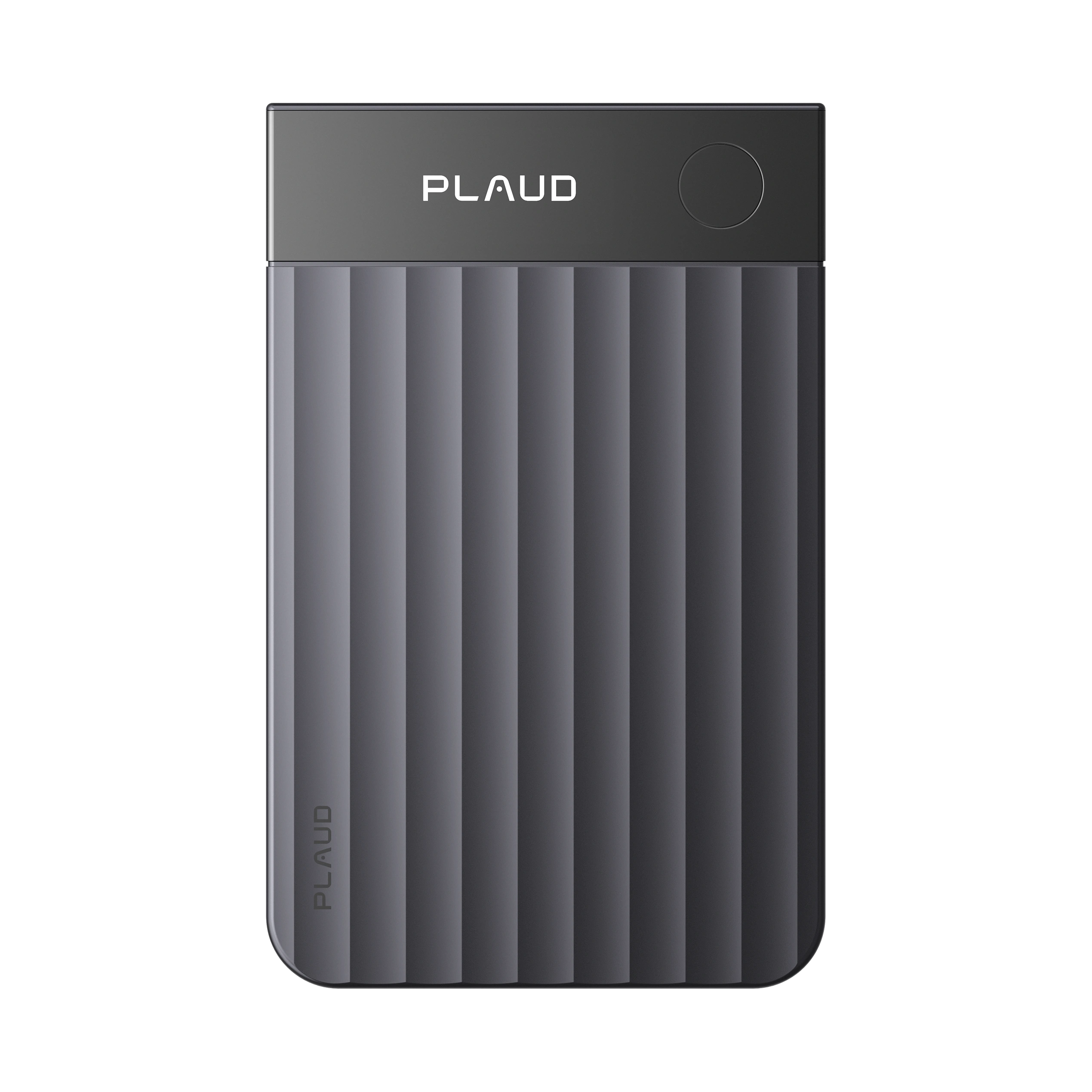
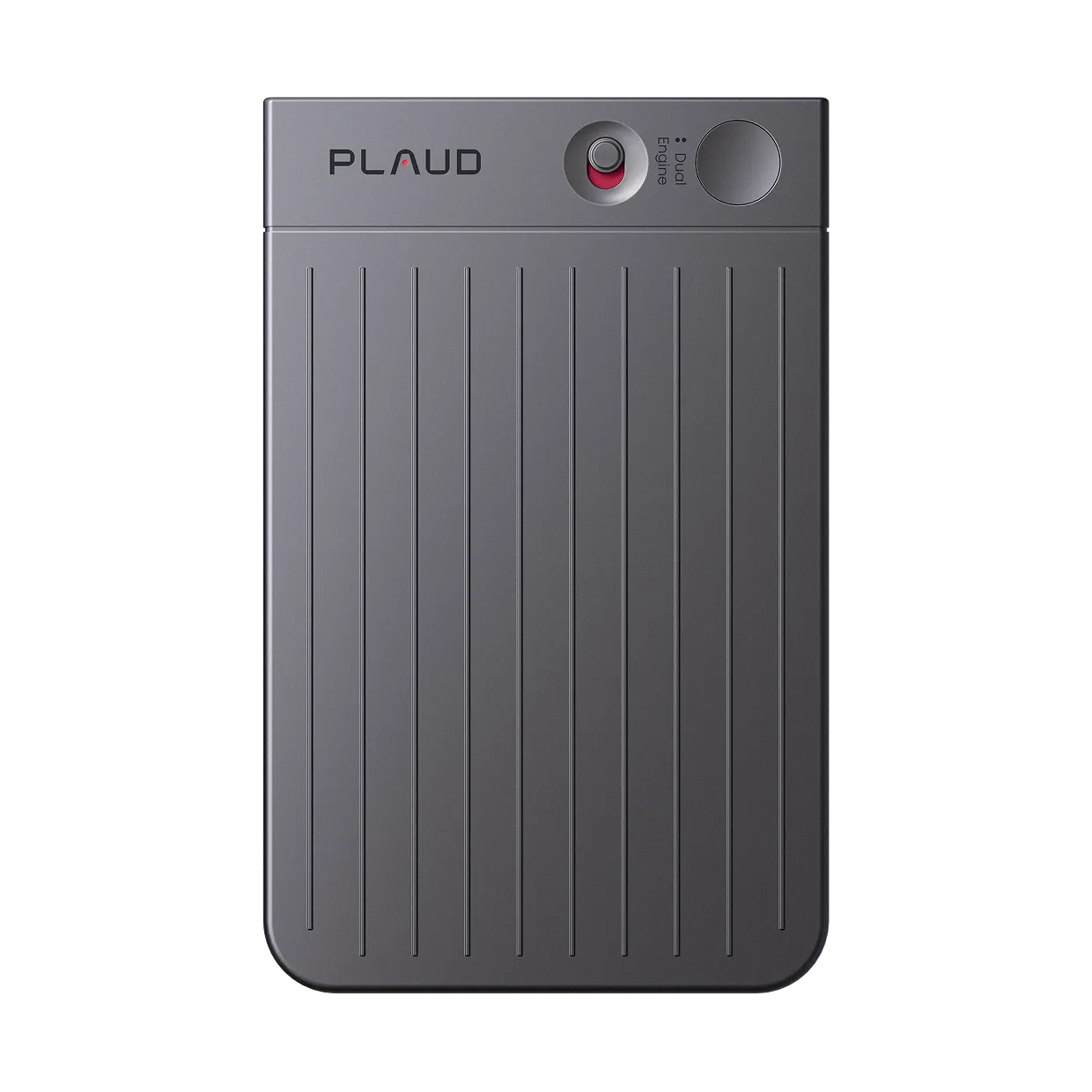
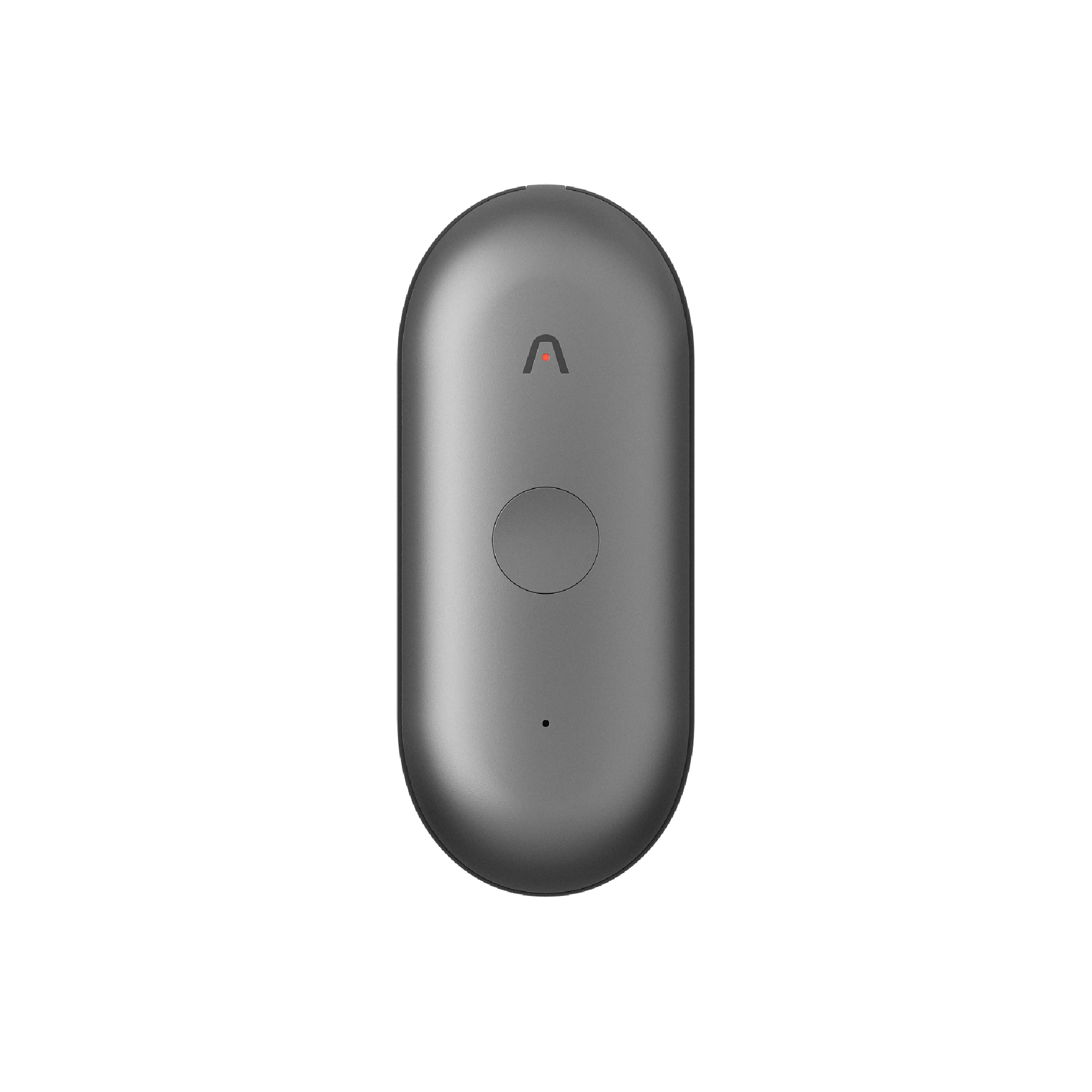
AI recorder (Plaud Note Pro)
4 MEMS mics capture audio at the source. Plaud Intelligence transcribes after recording without requiring a file upload to any third-party service. No monthly caps. Speaker diarization included. Always record with participant consent.
Based on common transcription workflows and Plaud product data. Always confirm consent from all participants and follow local recording laws before recording any conversation.
Tips
Most transcription methods break down on audio you already have
Whether a method accepts existing files, whether it removes monthly limits, and whether it returns speaker labels are the three things that determine whether a transcription workflow is actually usable for regular work. A method that only captures live speech locks out anyone with an existing recording. A method with a free-tier cap creates a wall the moment your audio volume grows. A method with no speaker labels returns a wall of unattributed text that has to be annotated manually before it is useful.