AI voice recording · How-to guide
How to use a voice recorder with ChatGPT and AI tools
Most voice recorders produce audio files. ChatGPT processes text. The step between them (upload, transcribe, paste) is where the habit breaks. A recorder that handles transcription and AI processing in the same device removes the friction that makes the manual workflow unsustainable.
 Best for voice-to-AI workflows
Quick answer
4 methods from voice recording to ChatGPT output
ChatGPT can capture and process voice input through its own built-in tools or by accepting an uploaded audio file from any external recorder.
1. Use ChatGPT's Record Mode on the desktop or Mac app
The ChatGPT desktop and Mac app includes a Record button in the prompt area. Click it to capture microphone audio directly into the chat.
2. Click the microphone icon for real-time dictation
The mic icon in the ChatGPT prompt box converts speech to text before sending. This is best for composing messages hands-free.
3. Record externally and upload the audio file
Record on any voice recorder app, save the file, and upload it directly to ChatGPT for transcription and analysis.
4. Use a specific prompt to get structured output
A specific prompt like "List all decisions made, with the name of the person who made each one" returns structured output.
Methods
Which setup gets from audio to AI output fastest
Compared on the number of manual steps between recording and usable AI output, the quality of the AI model used, export options, and whether processing happens automatically or requires manual action.
Phone voice memo → Whisper → ChatGPT manual
Record on phone, download file, upload to Whisper, copy transcript, paste into ChatGPT with prompt, copy output. Five or more steps. No speaker labels.
Otter.ai bot on Zoom
Auto-transcribes video calls. Otter AI summary is limited to Otter's model. Custom output requires additional steps outside Otter. Call-only.
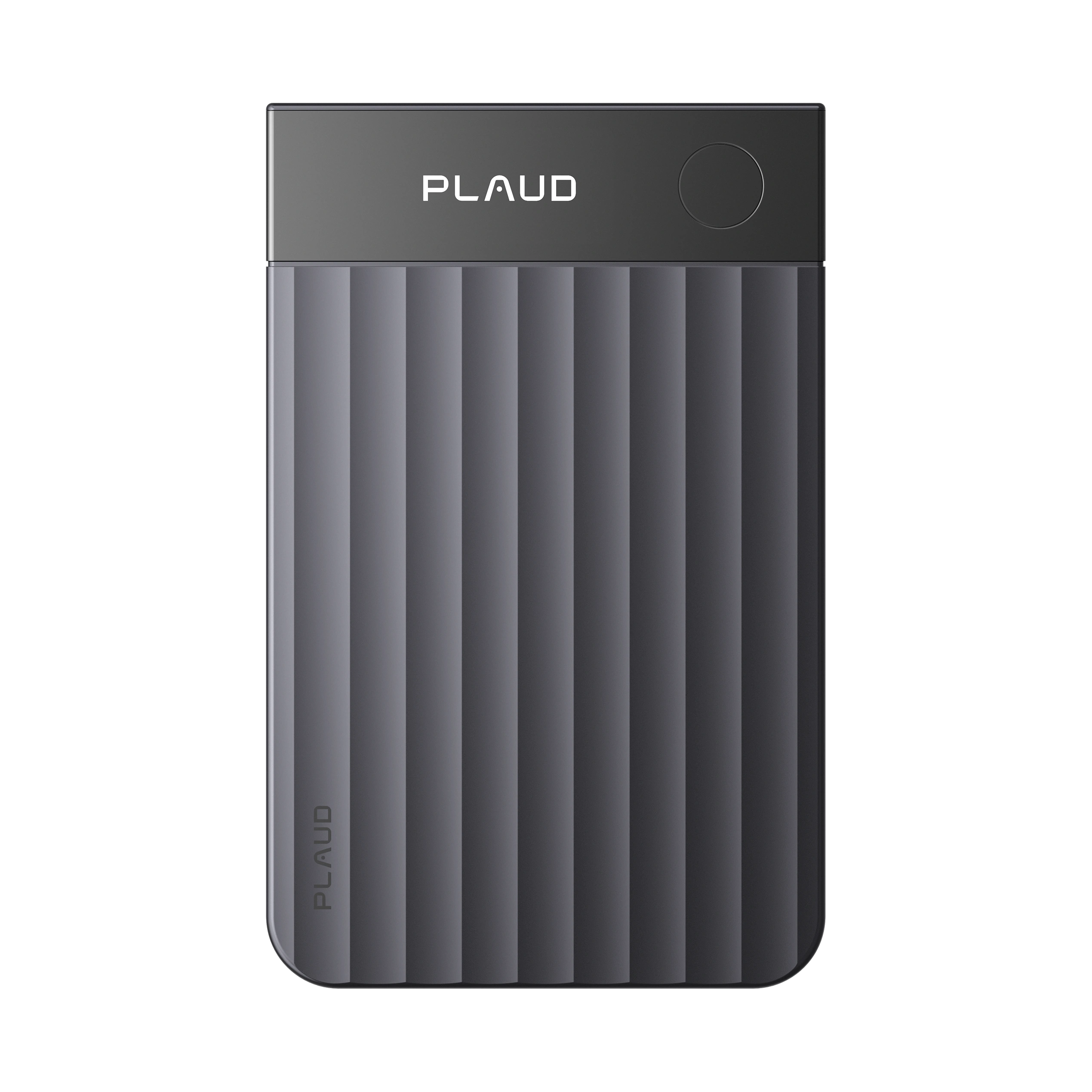
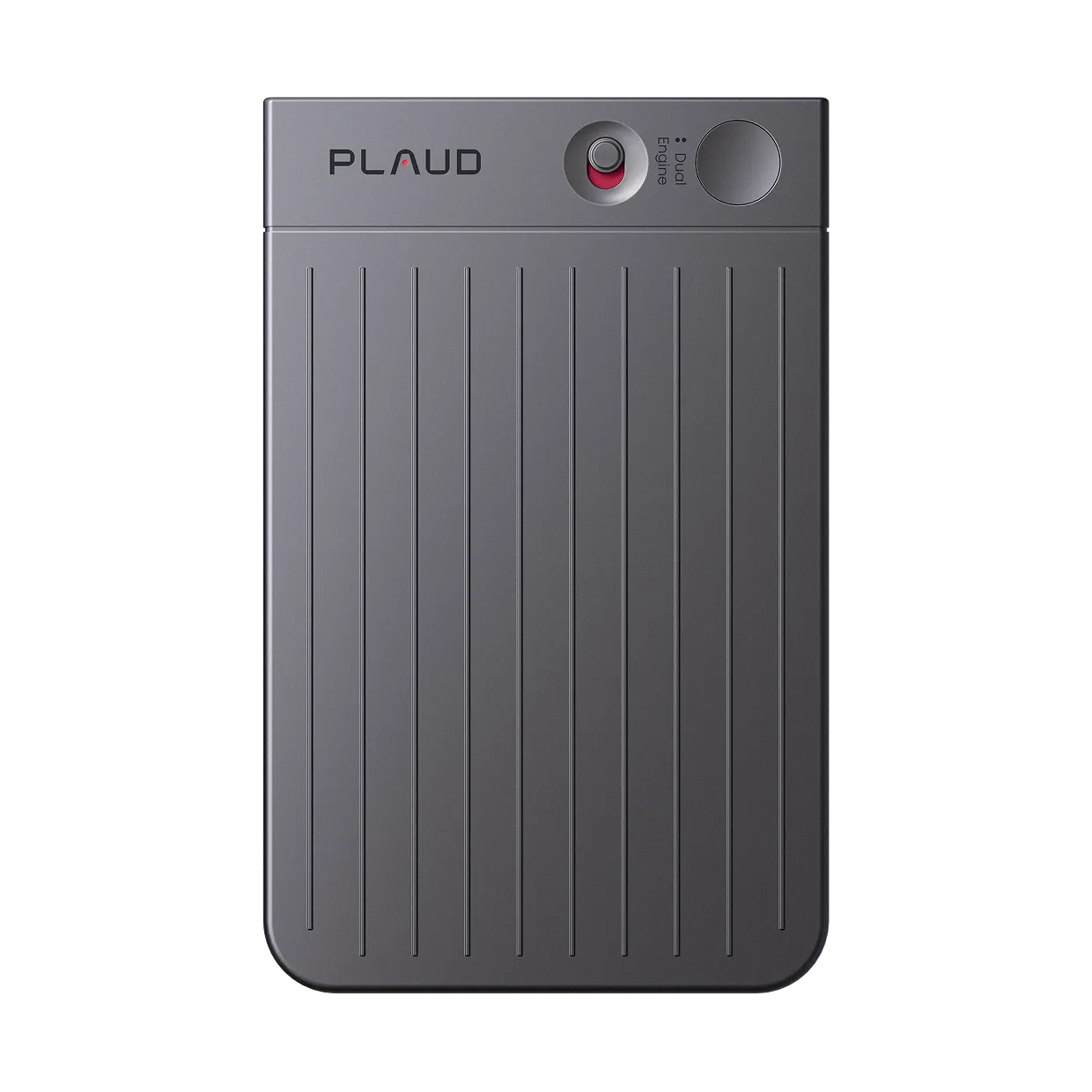
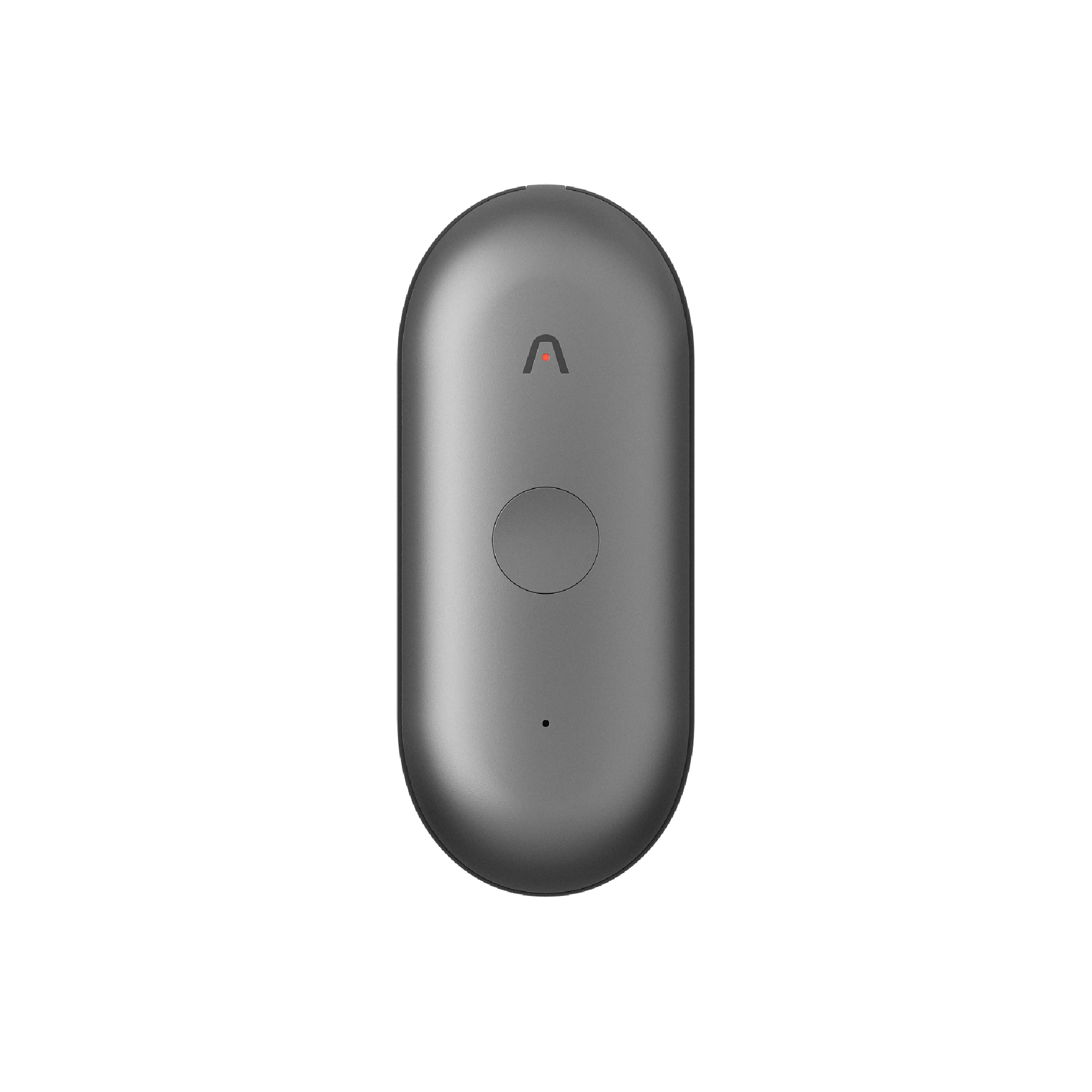
Plaud Note with the Plaud app
Auto-transcribes via the Plaud app after upload. AI summary via the app. Custom prompts require manual copy-paste to ChatGPT.
Plaud Note Pro with Plaud Intelligence
Auto-syncs, transcribes, and generates structured output using 10,000+ session-specific templates. Native export to Notion, email, project tools. Covers calls and in-person. Always record with consent.
Based on common voice recording and AI tool workflows and Plaud product data. Always confirm participant consent before recording any conversation or meeting.
Tips
Five manual steps is not a workflow. It is why the habit does not form.
A voice-to-AI workflow breaks at the step that takes the most effort. Without automatic sync, the recording waits for an upload that often gets postponed. Without session-specific templates, a generic summary comes back regardless of what was discussed. Without native export, routing the output to the right tool adds another step where the workflow stops.