Recording WhatsApp calls has become essential for business professionals, journalists, and anyone who needs to capture important conversations for later reference. Whether you're using an Android device, iPhone, or desktop computer, multiple methods exist to successfully record both audio and video WhatsApp calls. You can choose from built-in screen recording features, third-party applications, or advanced external audio recorders like Plaud Note and Plaud NotePin that offer professional-grade recording with AI transcription capabilities.
Each recording method comes with its own advantages and limitations depending on your device and specific needs. The key is finding the right approach that works reliably with your setup while respecting legal requirements and ensuring high-quality audio capture.
- Can WhatsApp calls be recorded?
- Recording methods for Android devices?
- How to record WhatsApp calls on iPhone?
- Recording WhatsApp calls on desktop (PC & Mac)
- How can external audio recorders capture WhatsApp calls?
- How to choose the best WhatsApp call recording methods?
- Use AI to transcribe or analyze your WhatsApp call recordings
- Key legal and ethical points
- WhatsApp call recording: common questions answered?
- Start recording your WhatsApp calls today
Can WhatsApp calls be recorded?
Yes, WhatsApp calls can be recorded, but WhatsApp itself does not provide any built-in recording features for voice or video calls. Users must rely on external methods and third-party solutions to capture their WhatsApp conversations. WhatsApp deliberately excludes call recording functionality to protect user privacy. This means that anyone wanting to record WhatsApp calls must use workarounds that operate outside of the WhatsApp app itself.
Your recording options depend on what device you're using. Android phones typically offer more recording possibilities through screen recording and third-party apps that can capture system audio. iPhone users have fewer choices due to Apple's stricter security rules that prevent most apps from recording internal phone audio. Computer users on Windows and Mac have additional options through system recording software. External recording devices like Plaud Note and Plaud NotePin work with any device and provide reliable recording quality. These AI note takers automatically record your conversations and turn them into organized, searchable notes. Before recording any calls, check your local laws since many places require you to get permission from everyone on the call before you start recording.
Discover more


Recording methods for Android devices
Since Android devices offer more flexibility for call recording, you have two main approaches to capture your WhatsApp conversations. The built-in screen recording feature works on most modern Android phones, while specialized third-party apps can provide more advanced recording capabilities.
Using onboard screen recording
Most Android phones manufactured after 2019 include a screen recording feature that can capture WhatsApp calls directly. This built-in option requires no additional downloads and works immediately on compatible devices.
Step-by-step recording process:
- Activate the screen recorder by swiping down from the top of your screen to access the quick settings panel.
- Locate the screen recording icon (usually labeled "Screen Record" or showing a video camera symbol).
- Start your WhatsApp call after beginning the screen recording to capture the entire conversation.
- Stop the recording when your call ends by tapping the recording notification or returning to the quick settings panel.
Audio quality expectations:
| Device type | Internal audio | External audio | Recording quality |
| Android 10+ | Both voices captured | Microphone backup | High-quality stereo |
| Android 8-9 | Limited support | Your voice only | Moderate quality |
| Older devices | No internal audio | External microphone | Basic quality |
This method works best for video calls since you capture both the visual and audio components, but it consumes more battery power and creates larger file sizes compared to audio-only recording.
Key points:
- Android 10+ phones can record both sides of WhatsApp calls when using speaker mode and the correct screen recording settings - you need to select "internal audio" as the sound source.
- Popular Android brands like Samsung, Xiaomi, and Huawei generally support this feature, but performance varies depending on your specific phone model, Android version, and whether the recording app has the right permissions.
- Older Android versions or heavily customized systems are more limited—they usually only record your voice through the microphone and can't capture the other person's voice.
- Third-party recording apps can help fill the gaps, but they don't work consistently across all phones, and the quality varies.
Third-party recording applications
Dedicated call recording apps often provide better audio quality and more features than built-in screen recording. These applications are designed specifically for capturing phone conversations and can automatically detect WhatsApp calls.
Popular Android recording apps:
- Cube Call Recorder: Offers automatic WhatsApp call detection and cloud storage integration.
- Call Recorder - IntCall: Provides high-quality audio recording with easy file management.
- Automatic Call Recorder: Features smart recording triggers and multiple file format options.
Key features to consider:
Most third-party recording apps require specific Android permissions to function properly. You'll need to grant access to your microphone, phone calls, and sometimes accessibility services. The recording quality depends on how well the app integrates with your specific device model and Android version.
These apps typically offer advantages like smaller file sizes, automatic organization of recorded calls, and integration with cloud storage services. However, their effectiveness can vary significantly between different Android manufacturers due to varying system restrictions and audio routing policies.
How to record WhatsApp calls on iPhone?
While Android users enjoy multiple recording options, iPhone users face stricter limitations due to Apple's security policies. However, iPhone owners still have effective methods to record WhatsApp calls, though these require different approaches than Android solutions. The main options involve using the built-in screen recording feature or connecting your iPhone to a Mac computer for enhanced recording capabilities.
Screen recording for video and audio
iPhone's built-in screen recording feature provides the most straightforward method for capturing WhatsApp calls, though it comes with important audio limitations. This method works best for video calls where visual content is important, but audio quality may not meet professional standards.
How to enable and use screen recording:
- Add Screen Recording to Control Center by going to Settings > Control Center > Customize Controls, then tap the plus icon next to Screen Recording.
- Start recording by opening Control Center (swipe down from the top-right corner on newer iPhones) and tapping the screen recording button.
- Enable microphone audio by pressing and holding the screen recording button, then tapping the microphone icon to turn it on.
- Begin your WhatsApp call after starting the screen recording to capture the conversation.
iPhone screen recording limitations
| Audio source | Recording result | Quality level |
| Internal app audio | Not captured | No system audio recorded |
| External microphone | Your voice only | Moderate quality |
| Speaker audio | Both voices | Good quality (with background noise) |
The key limitation is that iPhone screen recording cannot capture internal audio from WhatsApp directly. You'll only record your own voice through the microphone unless you use speaker phone mode, which allows the microphone to pick up the other person's voice from your phone's speakers.
Using a Mac to record iPhone calls
Connecting your iPhone to a Mac computer provides a more professional recording solution that overcomes the audio limitations of standalone iPhone recording. This method requires additional setup but delivers superior audio quality and more reliable results.
Mac recording setup process:
Equipment requirements:
- Mac computer with macOS 10.14 or later
- Lightning or USB-C cable to connect your iPhone
- QuickTime Player (pre-installed on Mac)

Recording steps:
- Connect your iPhone to your Mac using the appropriate cable.
- Open QuickTime Player on your Mac and select "New Audio Recording" from the File menu.
- Select your iPhone as the audio source by clicking the arrow next to the record button and choosing your iPhone from the microphone options.
- Start recording in QuickTime before initiating your WhatsApp call on your iPhone.
- Place your WhatsApp call while the Mac records all audio through the connected iPhone.
Advanced Mac recording options:
For users who need higher quality recordings, software like Audio Hijack or SoundFlower can create more sophisticated recording setups. These applications allow you to route iPhone audio through your Mac's audio system and apply noise reduction or enhancement filters in real-time.
This Mac-based approach captures clearer audio quality compared to iPhone-only methods and provides better file management options through macOS. The recordings are automatically saved to your Mac, making them easy to edit, share, or archive for future reference.
Recording WhatsApp calls on desktop (PC & Mac)
Desktop recording expands beyond the Mac-iPhone connection method to include direct recording of WhatsApp calls made through the WhatsApp Desktop app or WhatsApp Web. Computer-based recording typically offers more control and better audio quality since you can use dedicated recording software designed for desktop environments. Both Windows and Mac computers provide multiple recording options that can capture WhatsApp calls with higher reliability than mobile methods.
Capturing calls on windows
Windows users can record WhatsApp calls through the desktop application using built-in tools or specialized recording software. The most accessible option is Windows Game Bar, which comes pre-installed on Windows 10 and 11 systems.
Windows game bar recording:
The Game Bar activates by pressing the Windows key + G while WhatsApp Desktop is open. Click the record button or use the Windows key + Alt + R shortcut to begin capturing your screen and audio. This built-in feature automatically records system audio, capturing both your voice through the microphone and the other person's voice from WhatsApp.
Third-party software advantages:
Professional recording applications like OBS Studio offer superior audio control and can separate different audio sources during recording. OBS Studio is free and provides advanced features like noise suppression, audio filtering, and multiple recording formats. Bandicam specializes in long-duration recordings with minimal system impact, making it ideal for extended business calls.
Audio configuration in Windows requires attention to your sound settings. Navigate to the Sound Control Panel to ensure your microphone and system audio are properly configured. Most recording software will automatically detect and use these settings, but manual adjustment may be necessary for optimal quality.
Capturing calls on macOS
Mac computers excel at desktop WhatsApp call recording due to macOS's integrated audio system and built-in recording capabilities. QuickTime Player provides immediate recording functionality without requiring additional software downloads. For a comprehensive guide on capturing audio across your Mac, understanding its various built-in and third-party options can further enhance your recording capabilities.

QuickTime Player setup:
Launch QuickTime Player and select "New Screen Recording" from the File menu. The recording interface allows you to choose between recording the entire screen or a selected portion. Click the arrow beside the record button to configure audio input settings - select "Built-in Microphone" to capture your voice along with system audio from WhatsApp.
Professional Mac recording tools:
ScreenFlow stands out as a comprehensive recording and editing solution designed specifically for Mac systems. It captures high-quality audio and video while providing real-time editing capabilities. Audio Hijack focuses exclusively on audio capture and offers advanced routing options for users who need pristine sound quality without video recording.
macOS audio benefits:
Mac systems handle audio routing seamlessly through the Core Audio framework. This built-in system automatically manages multiple audio sources, ensuring that both microphone input and WhatsApp's audio output are captured simultaneously without manual configuration. The result is cleaner recordings with better audio synchronization compared to many Windows setups.
Desktop recording provides significant advantages over mobile methods, including larger storage capacity, better processing power for real-time audio enhancement, and easier file management for organizing and sharing recorded calls.
How can external audio recorders capture WhatsApp calls?
While desktop recording is compatible with post-production via WhatsApp Web and Desktop applications, mobile WhatsApp calls often require alternative solutions. External audio recorders provide a device-independent approach that circumvents the software limitations and compatibility issues common in app-based and native recording software.
What are external audio recorders
External audio recorders are separate hardware units of equipment designed specifically for recording audio calls, irrespective of your smartphone or computer's internal recording capabilities. They do not hearken to your device's operating system limitations, which makes them particularly beneficial for iPhone owners who experience strict recording limitations. Compared to software-based solutions prone to breaking with app upgrades and system changes, external recorders provide consistent performance irrespective of your device or WhatsApp version.
External recorders of today connect to smartphones through magnetic clip systems or capture ambient sound with high-end microphones. The record may include AI-based transcription functionality, which transcribes your recorded WhatsApp calls into search-ready text files.
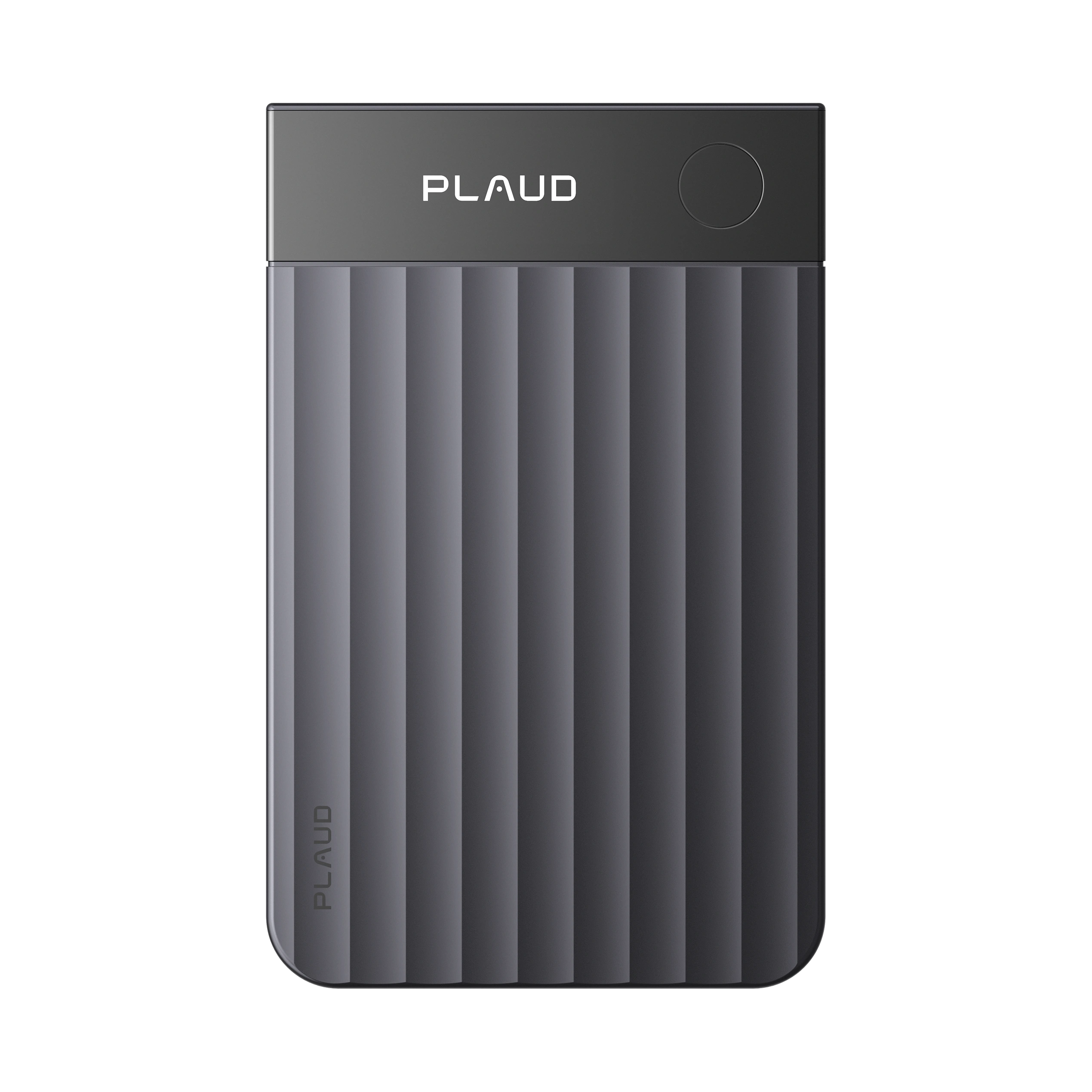
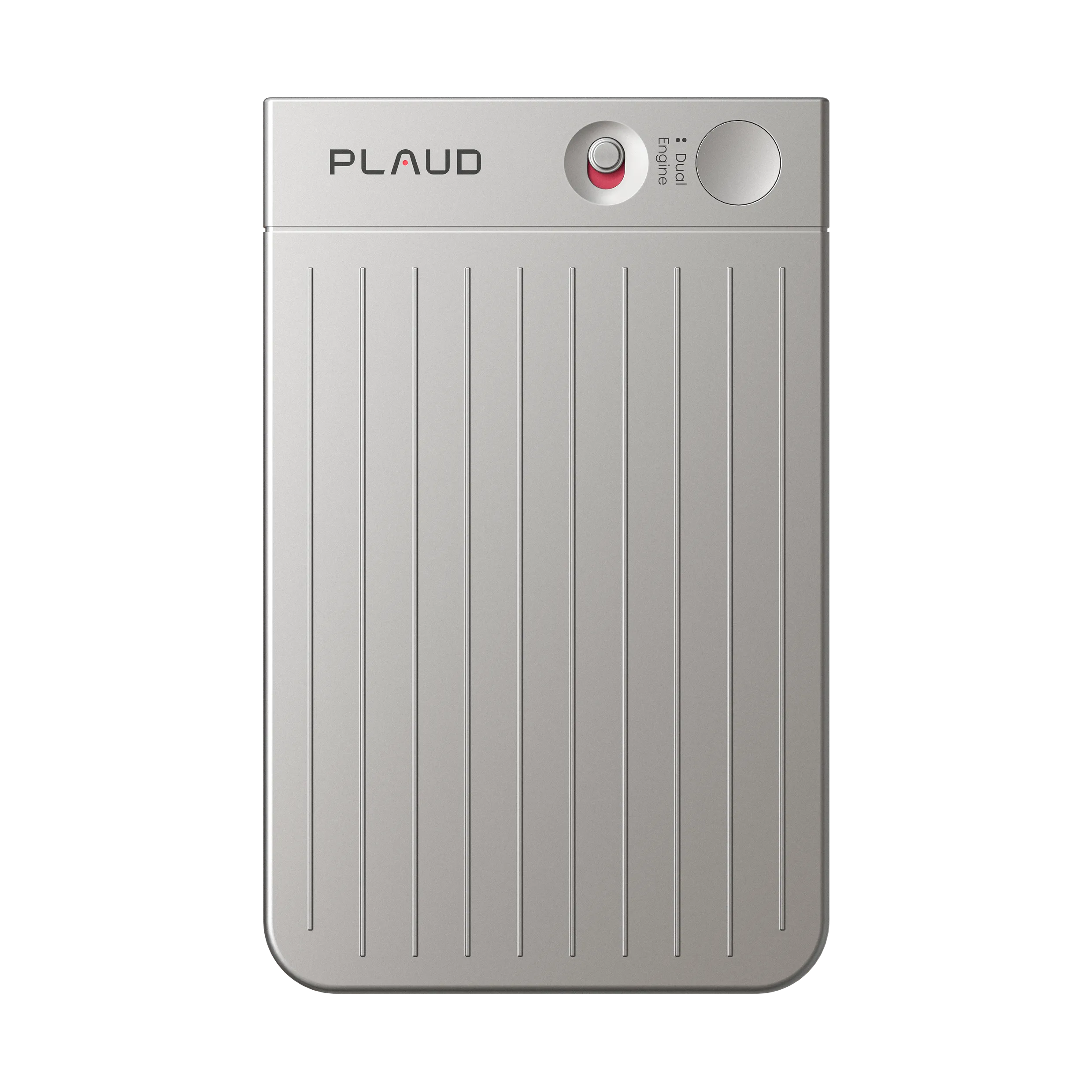
Plaud Note for professional WhatsApp recording
Plaud Note offers a comprehensive recording solution priced at $269 AUD.00 that attaches directly to your smartphone through a magnetic case system. This device features dual recording modes that make it versatile for different WhatsApp call scenarios.
Recording capabilities:
- 30-hour continuous recording capacity
- 60-day standby battery life
- 64GB local storage for extensive call archives
- Choose your magnetic connection: seamless recording with MagSafe Case or MagSafe Ring.
WhatsApp call recording methods:
The Plaud Note captures WhatsApp calls through two distinct approaches. Phone call recording mode works when the device attaches to your smartphone via the included magnetic case, automatically detecting and recording calls. Onsite recording mode captures ambient sound, making it effective for WhatsApp video calls played through your phone's speakers during in-person meetings or group conversations.

AI-powered features:
Plaud Note integrates advanced AI models, including GPT-4.1, o3-mini, Claude 3.7 Sonnet, and Gemini 2.5 Pro, for intelligent call analysis. The device supports transcription in 112 languages with automatic speaker identification and paragraph formatting. It offers 30+ professional summary templates tailored for different use cases like business meetings, interviews, or customer calls, plus unlimited cloud storage for your transcribed conversations.
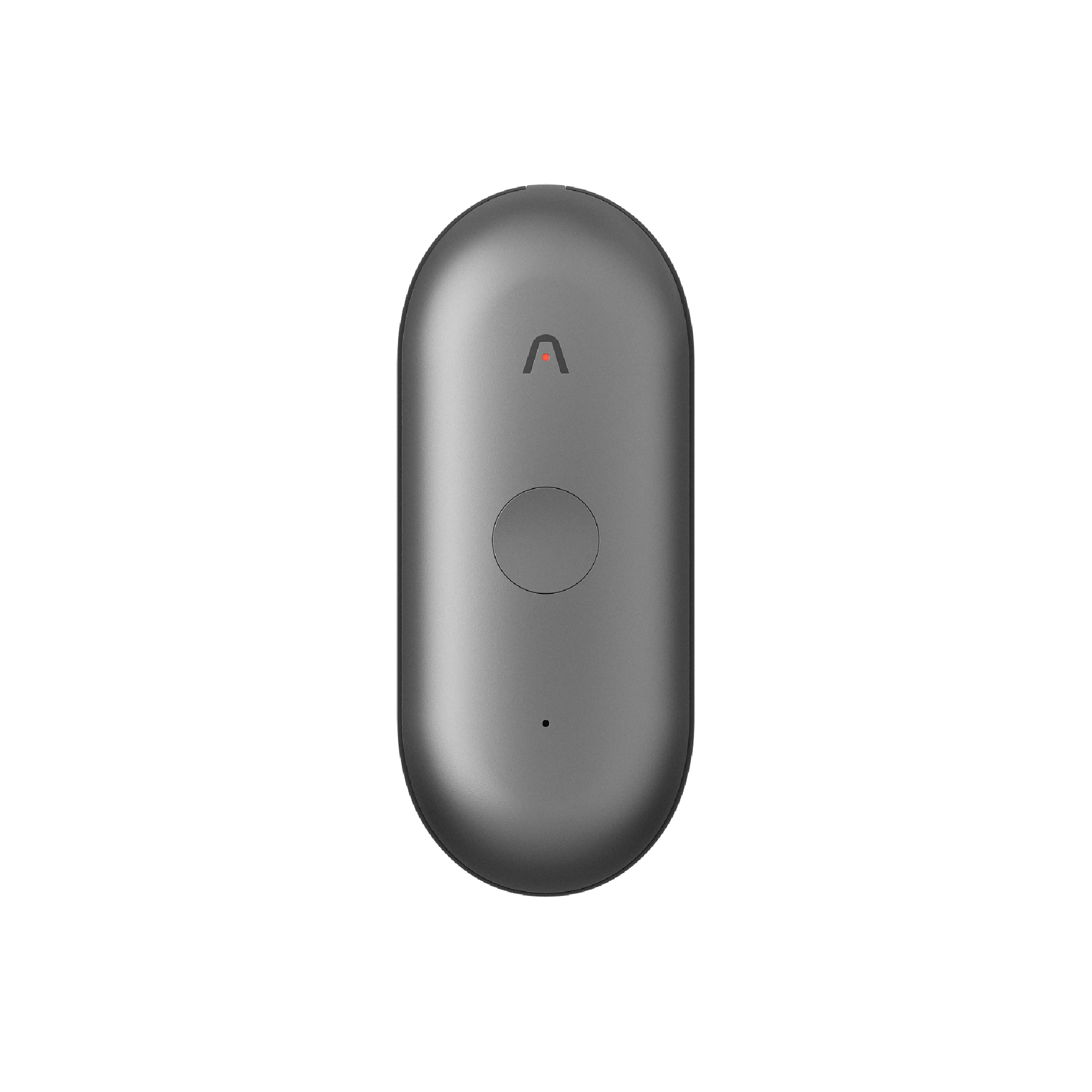
Plaud NotePin for hands-free WhatsApp recording
Plaud NotePin provides a wearable recording solution, designed for users who need hands-free recording during WhatsApp calls. This ultra-lightweight device weighs only 0.59 oz and offers four wearing styles: necklace, wristband, clip, or pin attachment.

Wearable recording specifications:
- 20-hour continuous recording duration
- 40-day standby battery performance
- 64GB storage capacity matching the Plaud Note
- Apple Find My integration for device tracking
WhatsApp recording applications:
The Plaud NotePin excels at capturing WhatsApp video calls when you need to maintain natural conversation flow without holding additional equipment. Its ambient recording capability works effectively during speaker phone calls or when multiple people participate in WhatsApp group calls around a table or meeting space.
AI transcription services:
Plaud NotePin includes the same AI-powered transcription technology as Plaud Note, with 300 minutes of free monthly transcription through the included Starter Plan. The device processes recordings using the same advanced AI models and provides identical professional summary templates for organizing your WhatsApp call content.
Benefits of using external recording devices
External recorders eliminate the compatibility problems that plague software-based recording solutions. They work reliably across all smartphone models, operating systems, and WhatsApp versions without requiring app permissions or system-level access. This consistency makes them particularly valuable for business users who cannot afford recording failures during important calls.
Audio quality advantages:
External recording devices provide superior audio quality through dedicated microphones and noise reduction technology. They capture clear audio regardless of your phone's speaker quality or environmental conditions. Battery life concerns disappear since these devices operate independently of your smartphone's power system, allowing for extended recording sessions without draining your phone's battery.
Privacy and security benefits:
External recorders offer complete local storage control, eliminating concerns about cloud-based recording services accessing your sensitive conversations. By default, recordings are only stored on the Plaud device and the associated Plaud APP. When transcribing and summarizing, recordings may need to be uploaded to servers for processing. The entire transmission process is encrypted, and user information is anonymized. You maintain full ownership of recorded files and can choose when and how to share or back up your WhatsApp call recordings.
Setup process for external recording
Setting up external recording devices requires minimal technical knowledge compared to software-based solutions. Both Plaud Note and Plaud NotePin include companion mobile apps that handle device pairing, file synchronization, and AI transcription processing.
Initial device setup:
- Download the Plaud APP: Click here to follow the guide about how to download the Plaud APP.
- Create an Account: You can choose to log into the Plaud App directly from your existing Google or Apple account or create a Plaud account via email.
- Bind Your Device: After creating your Plaud account and logging in successfully, click here to follow the guide to bind your device.
- Test the recording functionality.
Recording WhatsApp calls:
For Plaud Note, attach the magnetic case to your smartphone and position the recording device against the case during calls. Press the single activation button to begin recording before starting your WhatsApp call.
For Plaud NotePin, wear the device in your preferred style and activate recording with a button press (press and hold the center button until you feel the gentle vibration intensify) before initiating your WhatsApp conversation.
After you finish recording, the audio will be saved on your device automatically. If you prefer large-screen operation or you need to process the data in a more complex way, you can log into the Plaud Web: