Meeting recording · Step-by-step guide
How to Record a Meeting: Step-by-Step Guide
Most recording failures happen before the meeting starts. The wrong method, a missing permission, or a tool you forgot to open can leave you with nothing. This guide covers four approaches to recording a meeting and explains which one fits each situation, from virtual calls to in-person sessions.
 Best for virtual and in-person meetings
Quick answer
4 steps to record a meeting
Confirm consent first. Then choose the method that fits your meeting type before you start.
1. Confirm consent before recording
Recording laws vary by country and state. Always tell all participants you are recording and get their agreement before you start. In many places, recording a meeting when participants have not agreed is illegal.
2. Choose a recording method for your meeting type
Platform recording works for virtual meetings hosted on Zoom or Google Meet. A phone or dedicated recorder works for in-person sessions. A device with dual-mode recording covers both without switching tools.
3. Start recording 30 seconds before the meeting begins
Starting early captures the moment the meeting opens and avoids cutting off the first speaker. Test your audio level with a short clip before a real meeting to catch setup issues in advance.
4. Process the recording into usable notes after the meeting
A recording on its own is not a meeting record. Transcribe it, identify decisions and action items, and assign owners. The faster this step happens, the more likely the notes get used.
Methods
Four ways to record a meeting
Compared on whether the method covers in-person and virtual meetings, whether host permission is required, whether transcription is included automatically, and how much manual setup is needed each time.
Built-in platform recording
Platform recording is built into most video tools and easy to start. It only works while you are on that platform.
Phone recording app
A phone app picks up sound in the room and works without any platform access.
Laptop microphone
A laptop mic or screen recorder captures audio from your own session without host permission.
Dedicated AI recorder
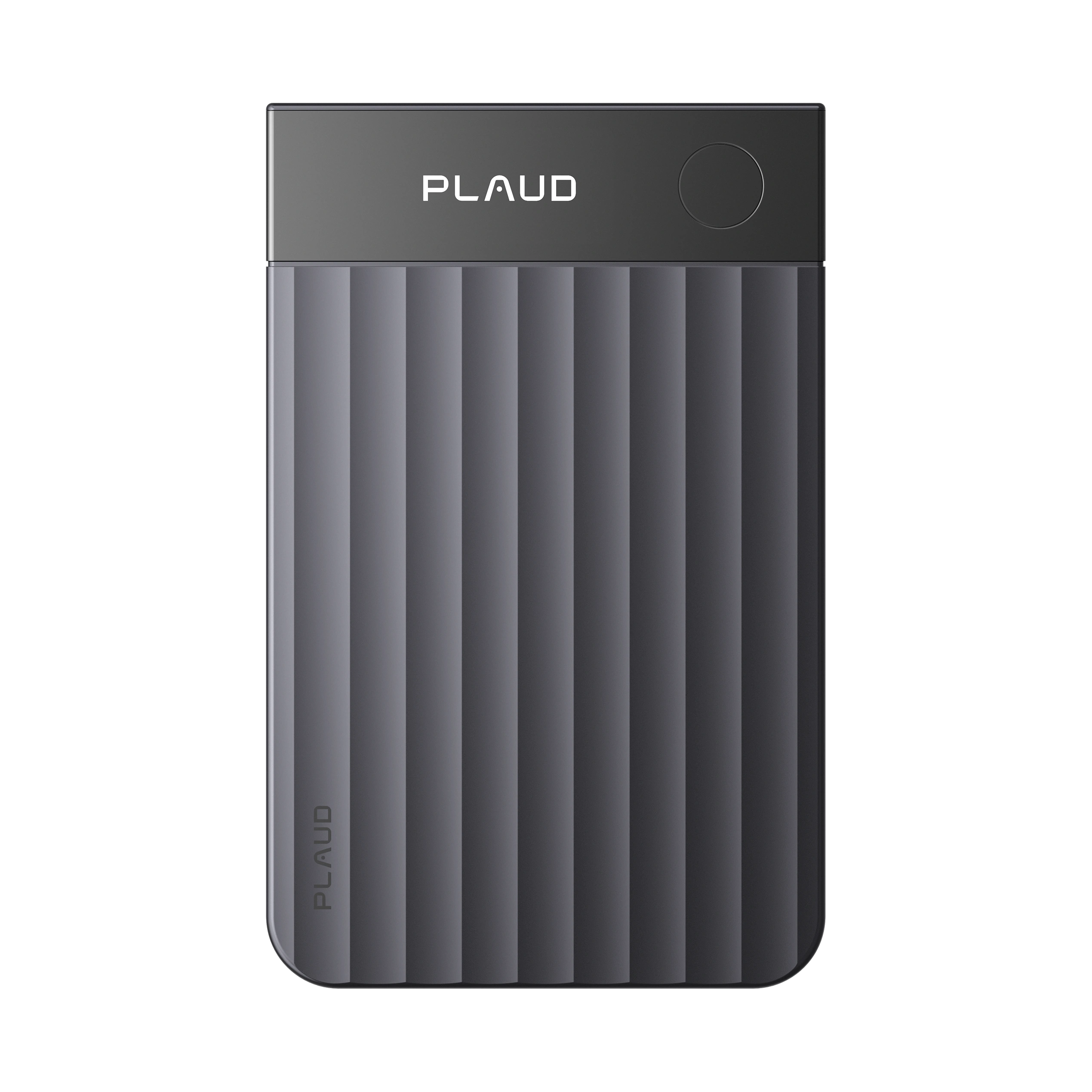
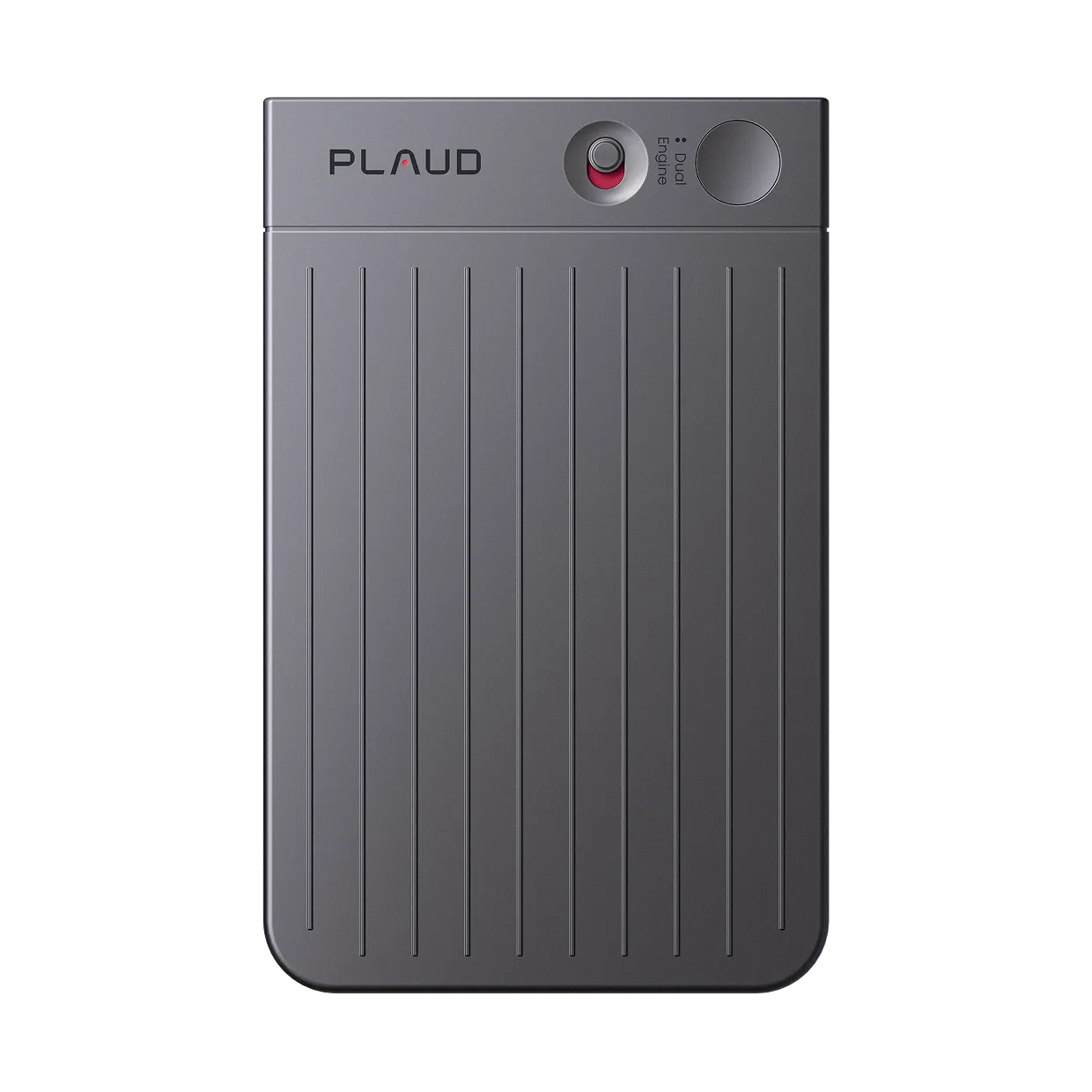
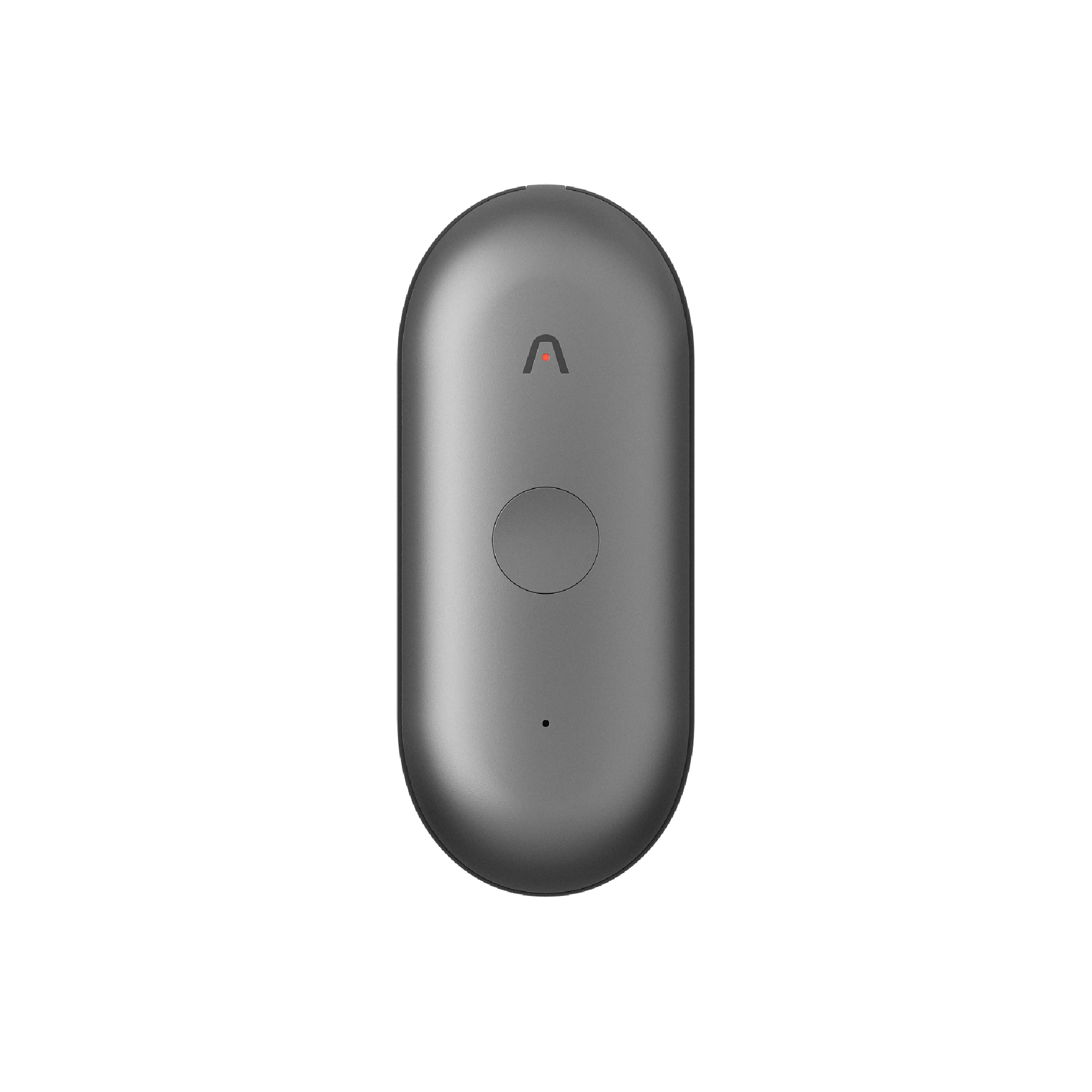
Plaud Note Pro captures in-person meetings through four MEMS mics with AI beamforming, and phone calls through smart dual-mode.
Based on common meeting recording workflows and Plaud product data. Always follow your organization's recording policy and local consent laws before recording any meeting.
Tips
Most recording setups work for one meeting type. Few cover both.
The method you choose before a meeting determines what you can do after it. Platform access, device range, transcription path, and manual startup steps each create a point where the recording can fail or become unusable.
The easier way
How Plaud Note Pro records any meeting without relying on platform permissions
Plaud Note Pro uses smart dual-mode recording to cover both virtual calls and in-person sessions. For phone calls, it attaches to the back of your phone and captures both sides of the audio directly. Always confirm that all meeting participants have consented before recording.
- No host permission requiredRecords independently of any meeting platform.
- Smart dual-modeSwitches between phone call mode and in-person mode.
- Auto transcriptionSyncs to the Plaud App and applies a session template automatically.

Plaud Note Pro
A physical AI recorder that covers virtual calls and in-person meetings. No platform login required.