Meeting recording · How-to guide
How to Record Meetings: Virtual, In-Person, and Hybrid
Recording meetings sounds simple until you hit a permission wall on Teams, or realize your video call tool cannot capture a room conversation. The setup that works depends on whether your meeting is virtual, in-person, or both.
 Best for virtual, in-person, and hybrid meetings
Quick answer
4 steps to record any meeting
Method selection and consent happen before the session opens. The right setup depends on whether the meeting is virtual, in-person, or hybrid.
1. Confirm consent before starting
Inform all participants and confirm again after the recording begins. Always confirm all participants have given consent before recording any meeting. State clearly that the session is being recorded and explain why.
2. Choose your method based on meeting type
Platform built-in, AI bot, screen recording, or a dedicated device. Virtual calls can use the platform's built-in recording when you have host access. In-person rooms need a physical device.
3. Position the device or activate the feature
Place a physical recorder at the center of the table before the meeting starts. For a virtual call, confirm your host role and enable recording before the first speaker responds.
4. After the meeting: export or sync the file
Open the transcript and share with absent participants. AI tools produce a full transcript and a summary of topics and action items.
Methods
Which setup covers every meeting type
Compared on setup effort required, whether each method covers both virtual calls and in-person rooms, whether speaker labels are generated, and whether transcription is included.
Platform built-in (Zoom / Teams / Meet)
Convenient for virtual calls when you have host access. Recording is greyed out if you are a guest or if an admin changed the policy. No coverage for in-person rooms.
AI meeting bot (Otter / Fireflies)
Joins as a separate participant and produces a transcript without host permission. Enterprise Teams and Zoom deployments often block external bots by policy. Cannot enter a physical room.
Screen recording
Already on your device and requires no account setup. Captures the call screen but not in-person audio. No speaker labels and no automatic transcript.
AI recorder (Plaud Note Pro)
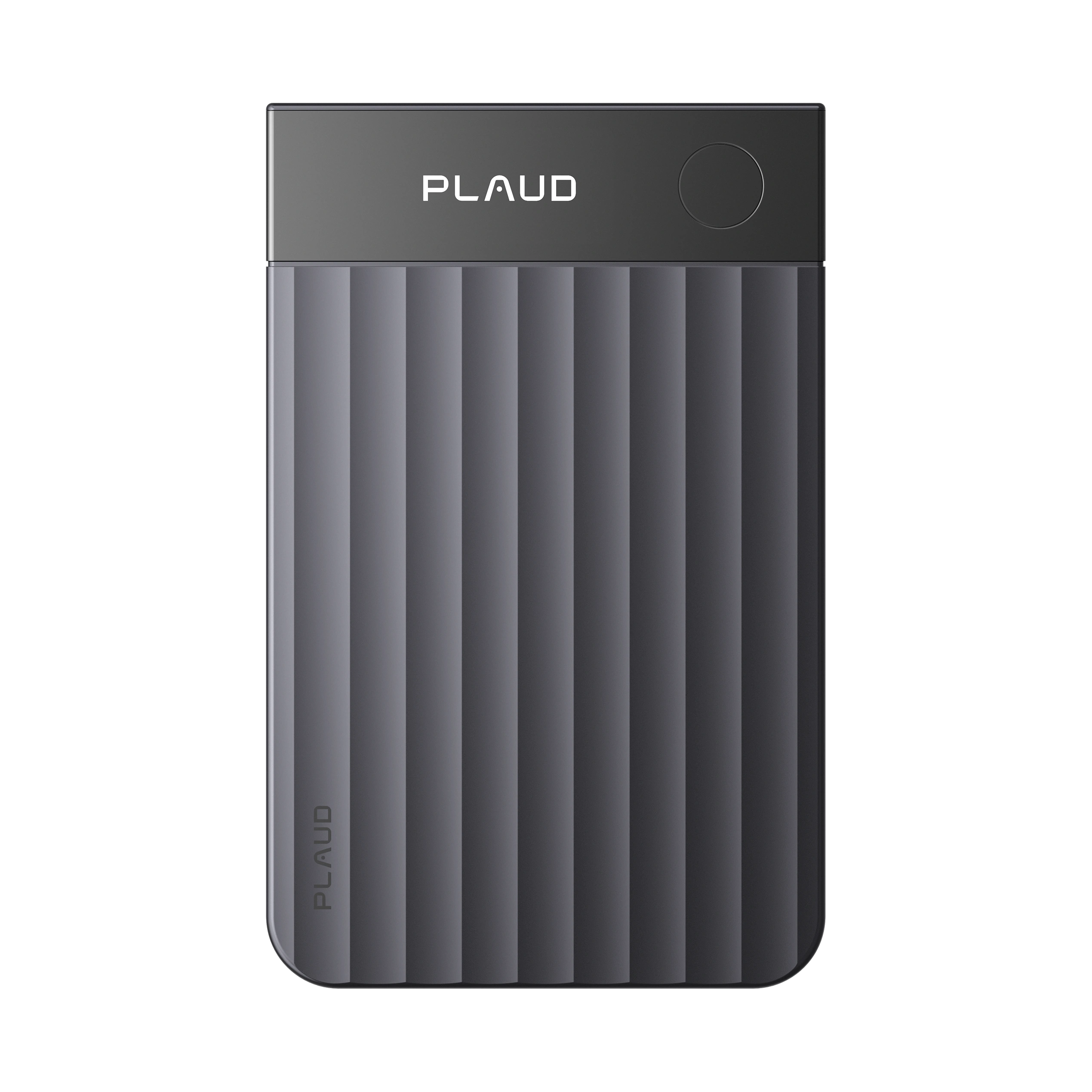
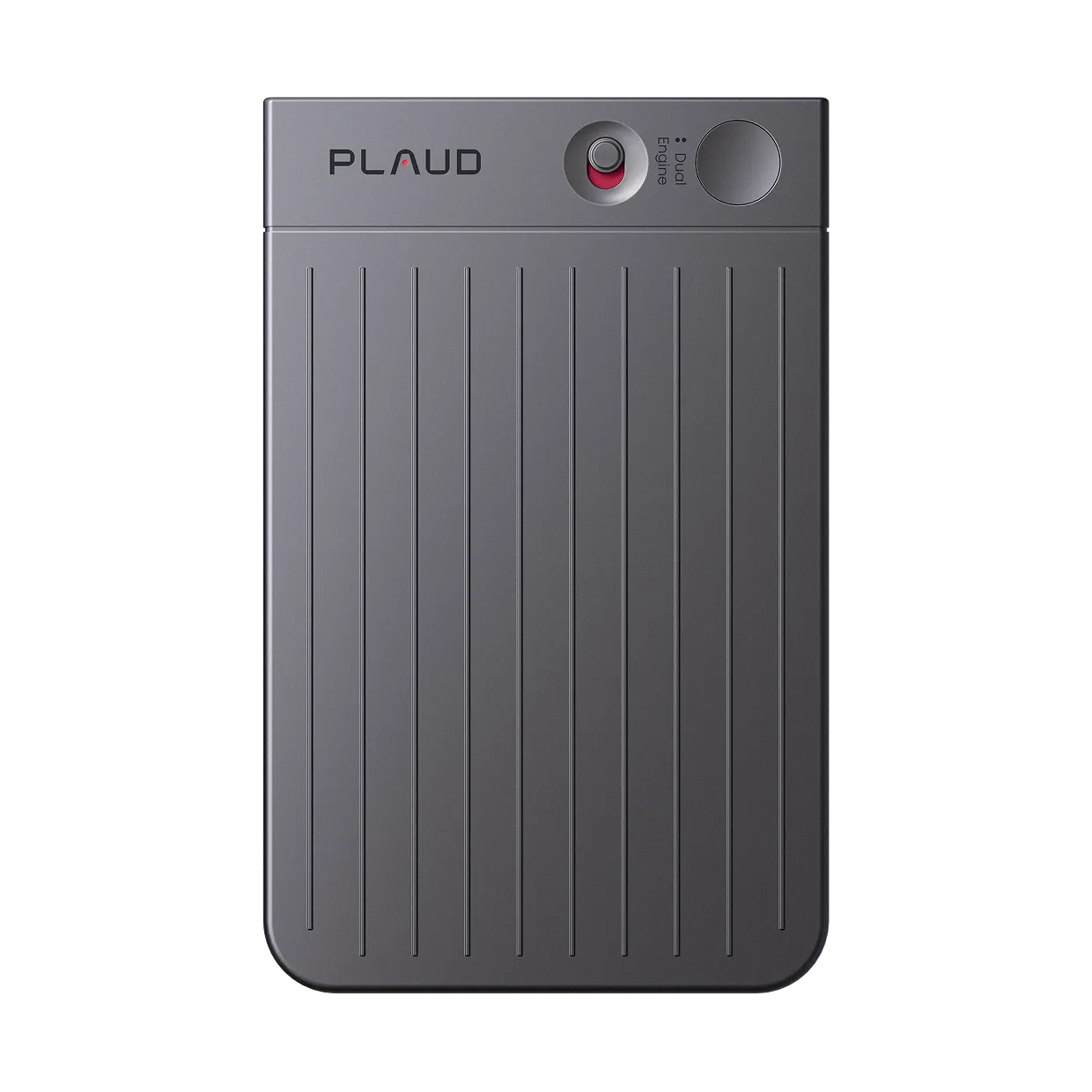
Smart dual-mode auto-detects call or in-person room. 4 MEMS mics with 5 m pickup capture every seat at the table. Plaud Intelligence transcribes and labels speakers automatically. Always record with participant consent.
Based on common meeting recording workflows and Plaud product data. Always confirm consent from all participants and follow local recording laws before recording any meeting.
Tips
Most meeting recording setups cover one scenario and fail in the others
Coverage, permission independence, and speaker attribution are the three things a recording setup must deliver to be consistently useful. Coverage means the tool works whether the meeting is virtual, in-person, or hybrid. Permission independence means you do not need a host role or admin access before every session. Speaker attribution means the transcript identifies who said what without a manual annotation pass after the fact.