Voice recorder · Teams meetings guide
How to Use a Voice Recorder with Teams Meetings
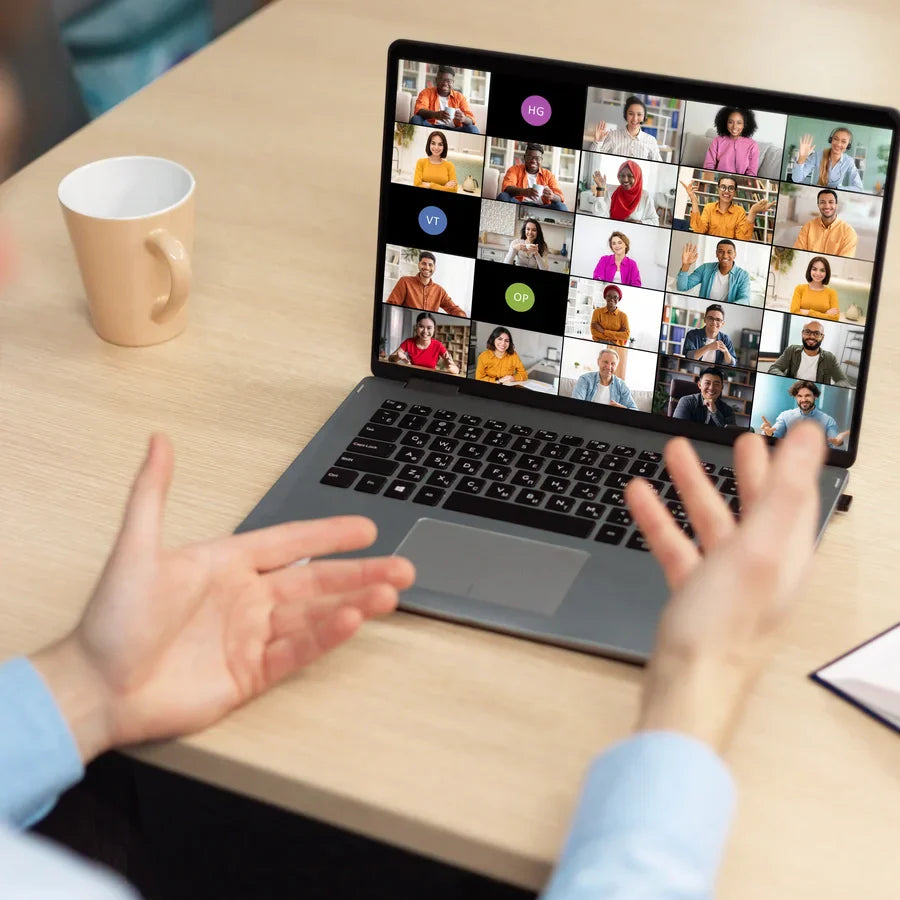
Teams has a built-in recording feature, but it requires a premium license and the host must turn it on. A physical voice recorder placed beside your laptop captures the audio from any Teams call without any permissions, software setup, or bot invitations. This guide shows four approaches and explains where each one breaks down.
 Best for Teams meetings without host permission
Quick answer
4 steps to record a Teams meeting with a voice recorder
Place the recorder before the call starts. The rest happens automatically after the meeting ends.
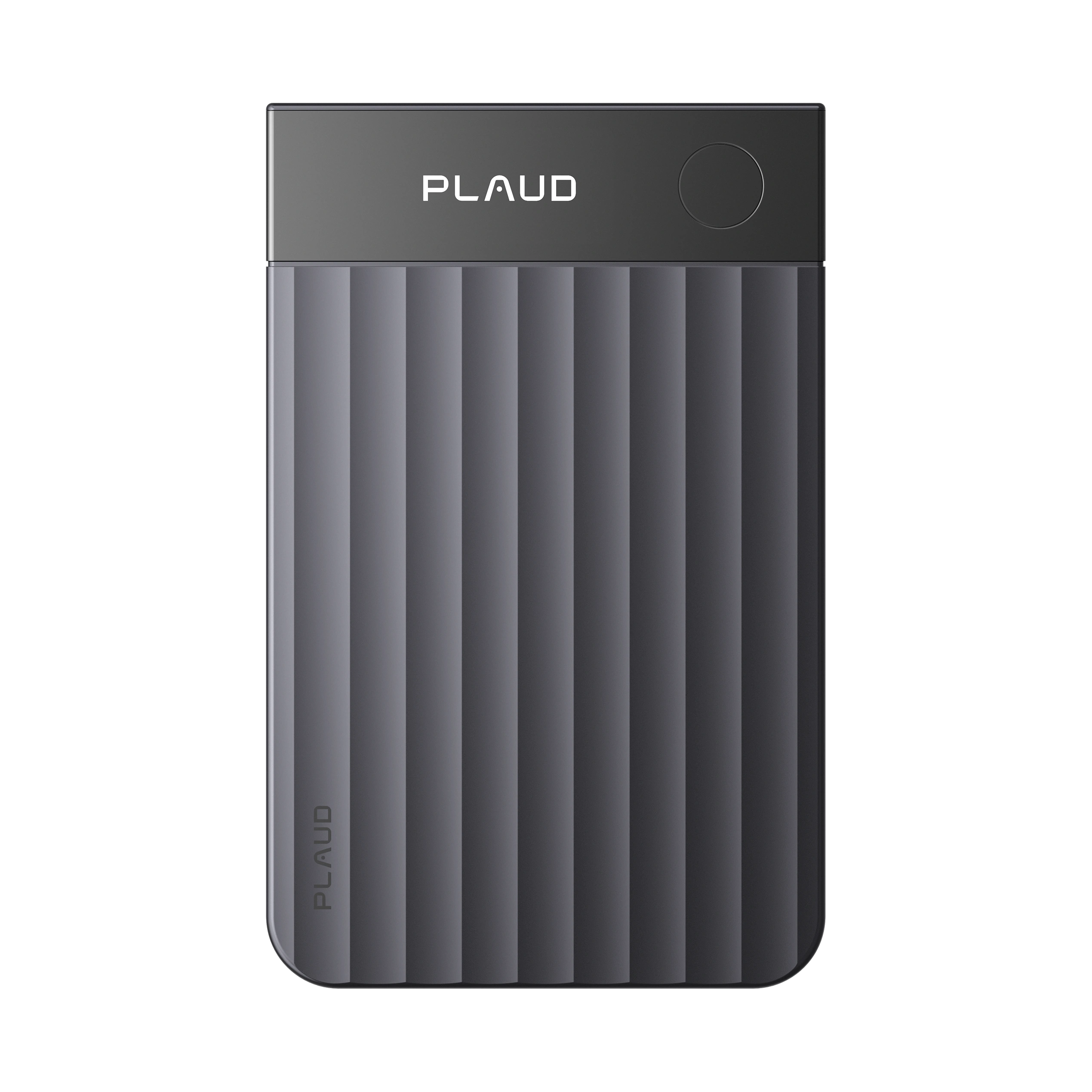
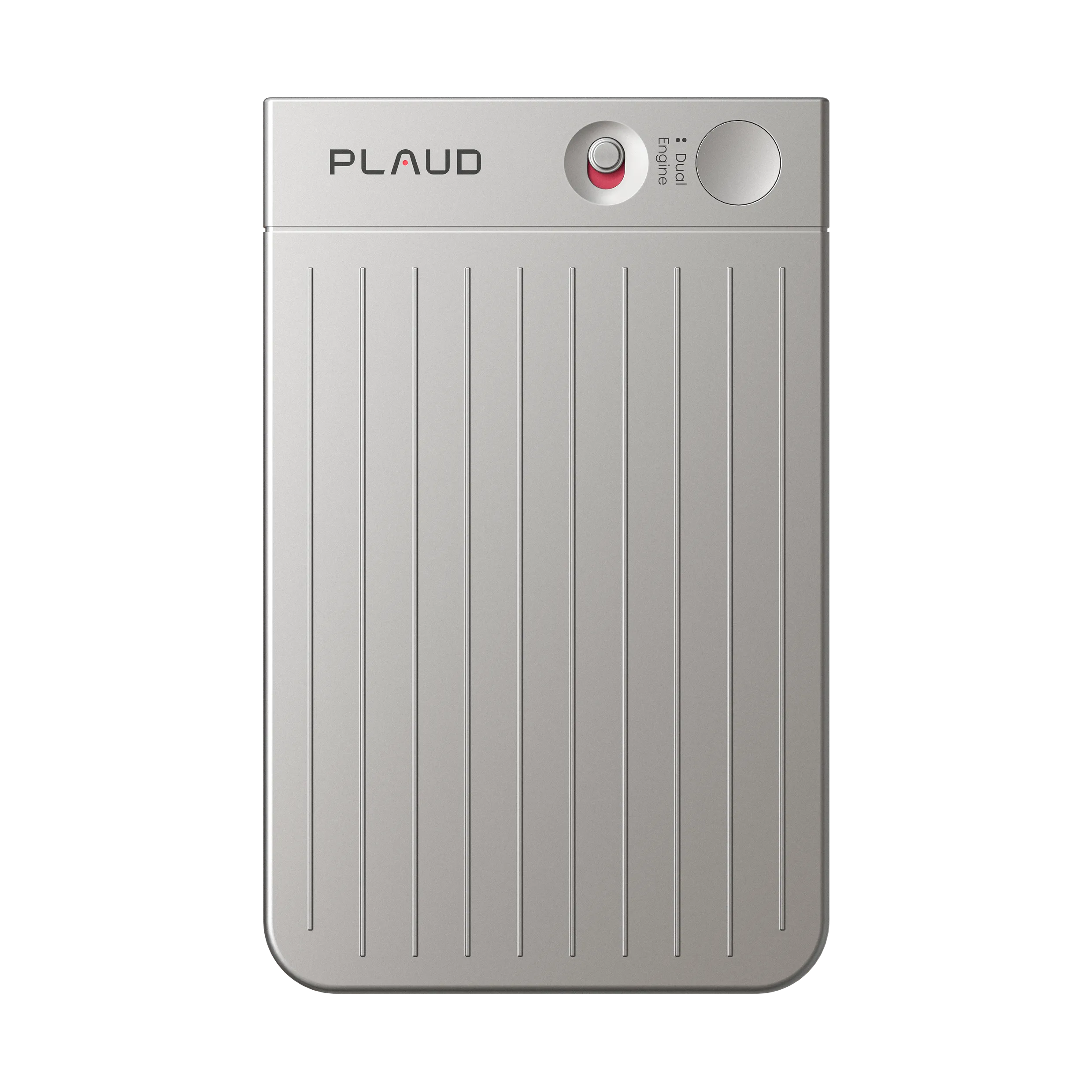
1. Place Plaud Note Pro beside your laptop speaker
Set the recorder within two feet of the laptop speaker before the Teams call starts. Always inform all meeting participants that the call will be recorded and confirm their consent.
2. Start Plaud Note Pro in phone call mode
Press the recording button to activate phone call mode. The four MEMS mics with AI beamforming capture audio from the laptop speaker across the full call.
3. Stop recording when the meeting ends
Press the button again to stop. The recording saves locally to the device.
4. Open the Plaud App to get your transcript and summary
Sync the recording to the Plaud App. Plaud Intelligence transcribes the audio and applies a meeting template to generate a structured summary with action items.
Methods
Four ways to record a Teams meeting and get a transcript
Compared on whether a license is required, how many setup steps are needed, transcription quality, and whether a structured summary is generated automatically. Low means easy or no requirement. High means significant effort or constraint.
Teams built-in recording
Teams can record meetings natively, but it requires Teams Premium or an E3/E5 enterprise license. The host must start the recording. All participants are notified.
AI bot (Otter.ai, Fireflies)
Bot tools join the meeting as a participant. They transcribe in real time and send a summary after the call. The bot appears in the participant list.
Phone voice memos
The native recording app on a phone captures ambient room audio. It works without any setup, but the microphone picks up background noise.
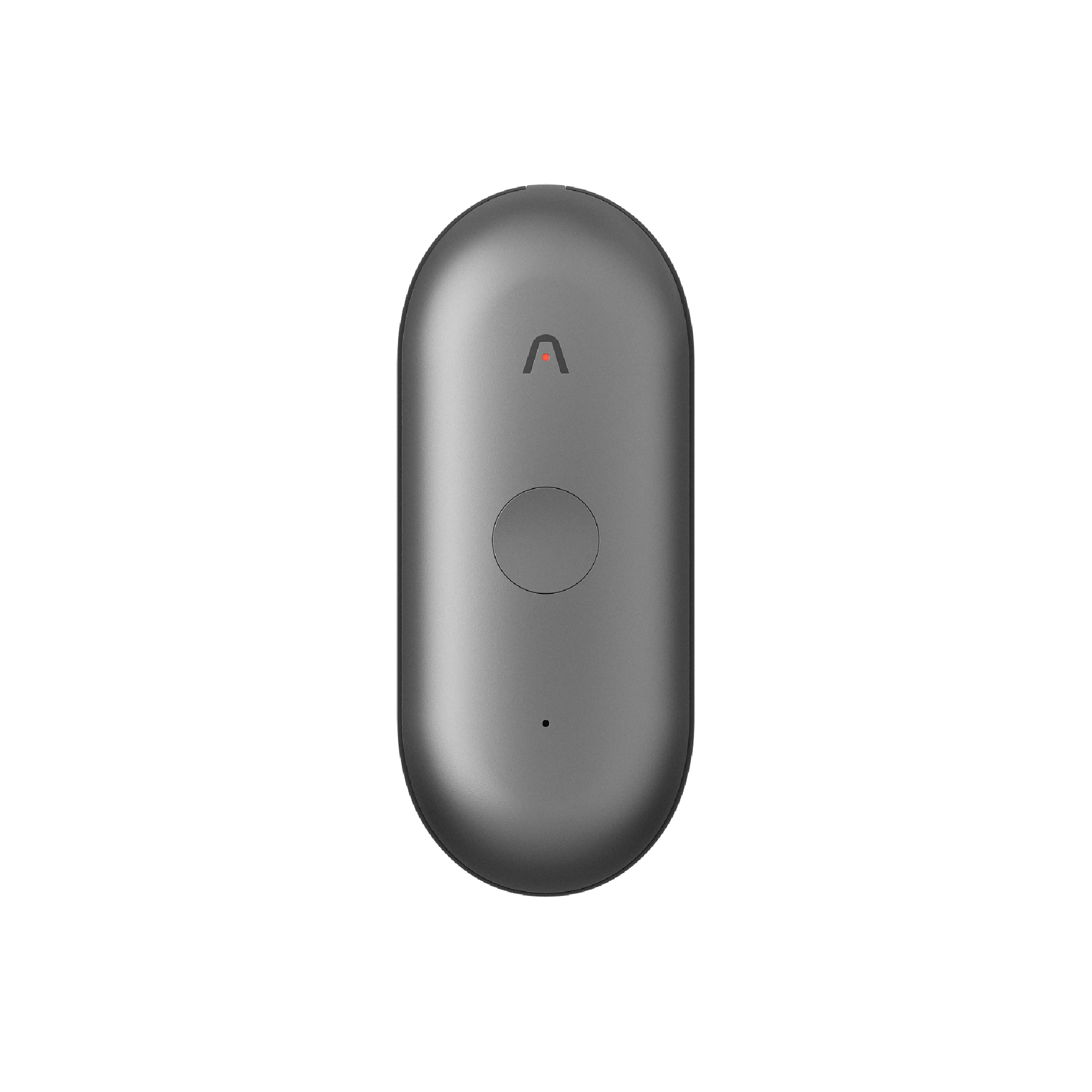
Physical AI recorder (Plaud Note Pro)
Plaud Note Pro sits beside the laptop. Four MEMS mics with AI beamforming capture the speaker output clearly. No bot joins the meeting.
Based on common meeting recording workflows and Plaud product data. Always inform all participants before recording any meeting and follow your organization's recording policy and local consent laws.
Tips
The recording method you choose determines whether you get notes or just audio
Four factors separate a meeting recording that produces usable notes from one that produces a raw audio file. Permission access comes first. Pickup range, meeting disruption, and summary output each decide whether the record becomes actionable or gets abandoned.